
Miruvia Video
AI video generator that brings ideas into motion.
Write a scene or animate a still. Miruvia renders smooth, cinematic clips with sound — in vertical, square or widescreen.
Three video tools
From a sentence, a photo or a reference clip.
Popular uses
Made for one job
Made with Miruvia
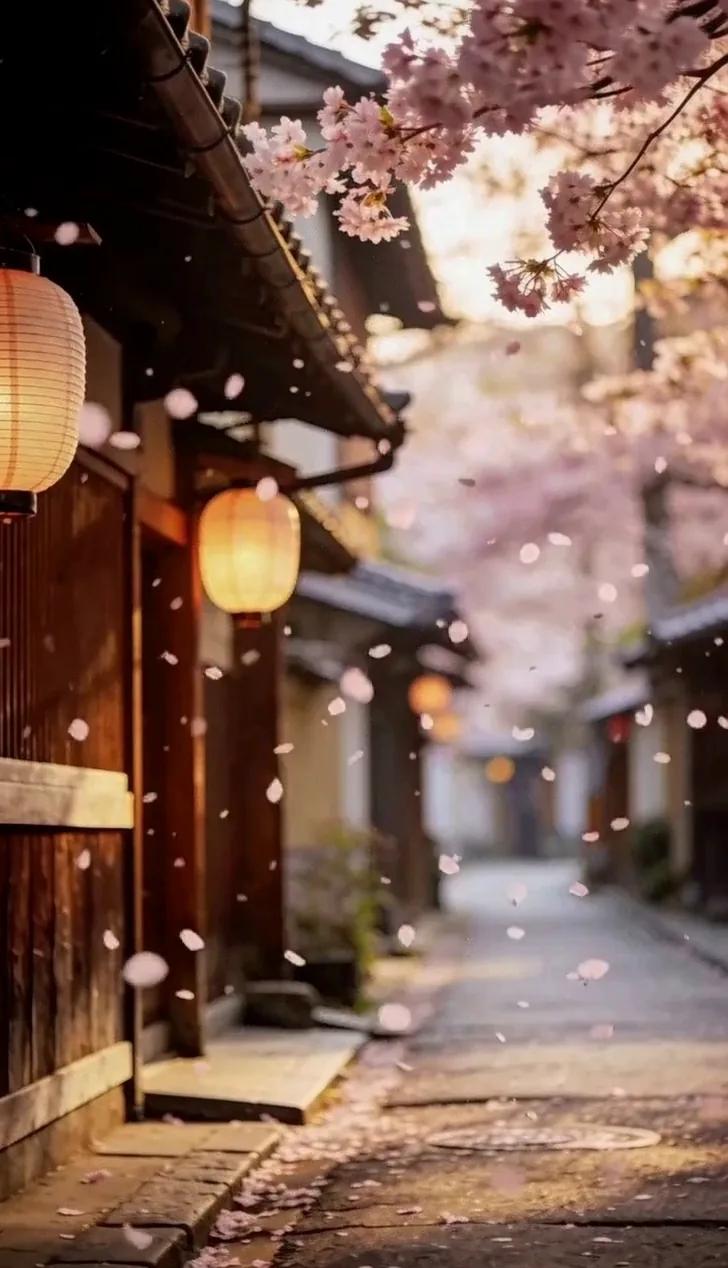
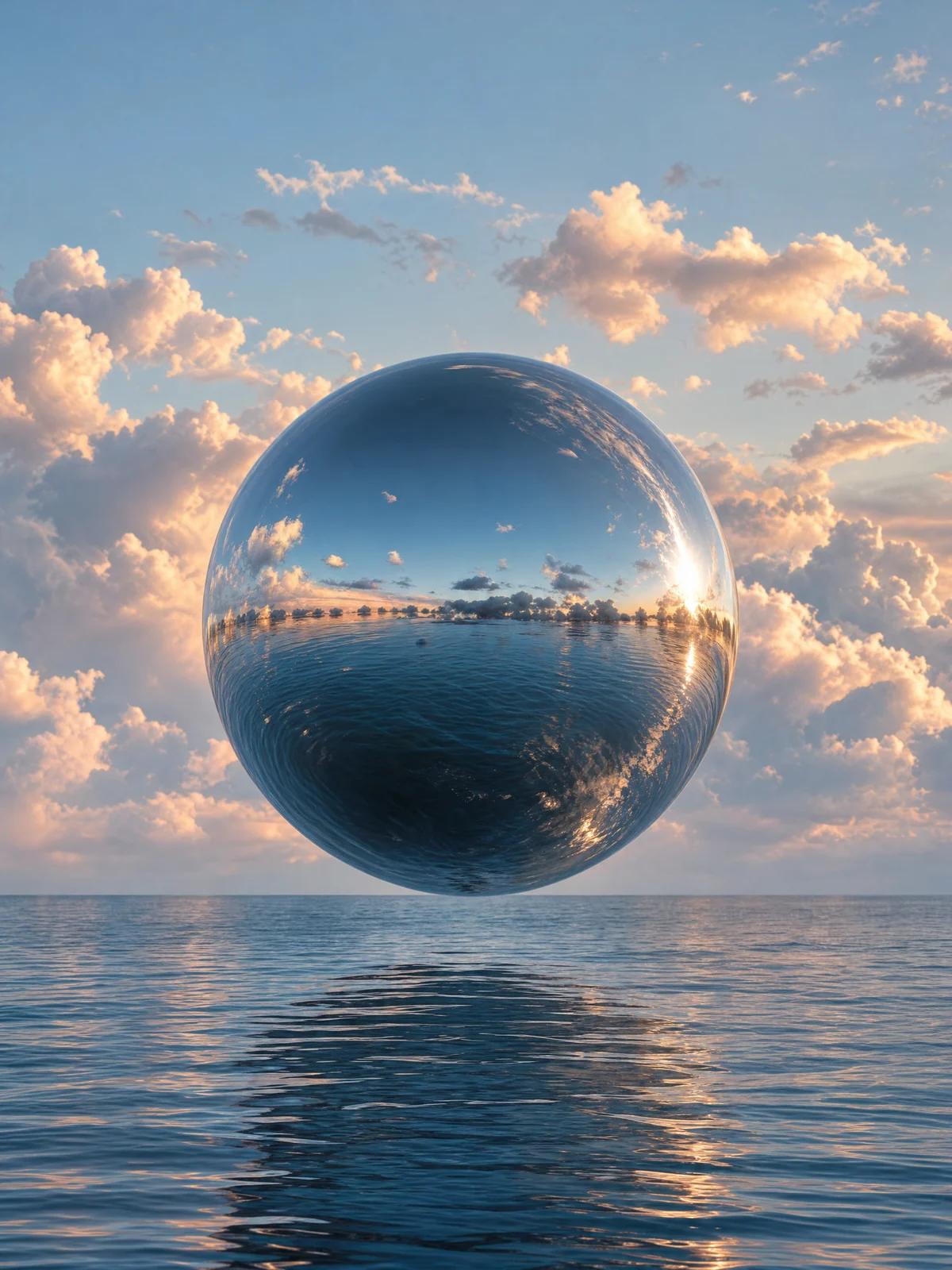
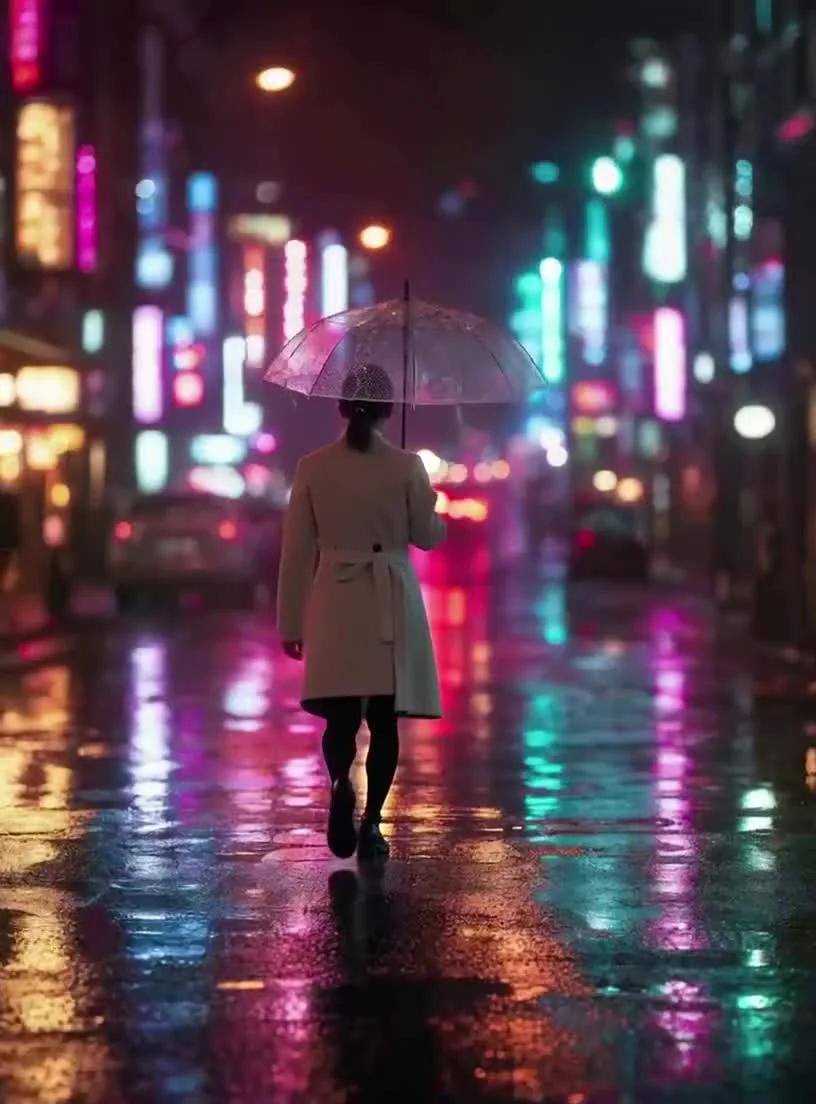
Stills that learned how to move.
How it works
Three steps from idea to clip.
- 01
Start from words or a still
Describe the shot, or upload the image you want to bring to life.
- 02
Set the shot
Choose the engine, length, resolution and format — vertical, square or wide.
- 03
Render and share
Watch it render in the queue, then download the finished clip.
Why Miruvia
Motion that feels directed, not random.
Two engines
Standard for fast, reliable clips; Ultra for the most detailed motion with its own soundtrack.
Up to 30 seconds
Make 5, 10 or 15-second clips — or up to 30 seconds with Ultra.
Sound included
Engines generate audio that fits the scene, so clips are ready to post.
Every format
9:16 for Reels and Shorts, 1:1 for feeds, 16:9 for YouTube and the web.
Reference mode
With Ultra, build a scene from up to five reference pictures and direct them by number.
Restyle any clip
Transfer the motion of a reference video onto your own subject.
Questions, answered
Frequently asked questions
Open Text to Video in the Studio, describe the subject, action, camera and mood, pick a length and format, and press Generate.
Yes. Image to Video turns a still into a moving clip. Add a short motion prompt to direct it, and an optional last frame to control the ending.
Standard renders 5, 10 or 15-second clips. Ultra renders up to 30 seconds.
A 5-second HD clip costs 13 credits. Longer clips, Full HD and Ultra cost more, and the exact price is shown before you render.
Yes. Best and Ultra generate audio that matches the scene; with Ultra you can switch sound on or off.
Vertical 9:16, square 1:1 and widescreen 16:9, in HD or Full HD.